Submit a post to the Public Gallery (and how the 24-hour quota works)
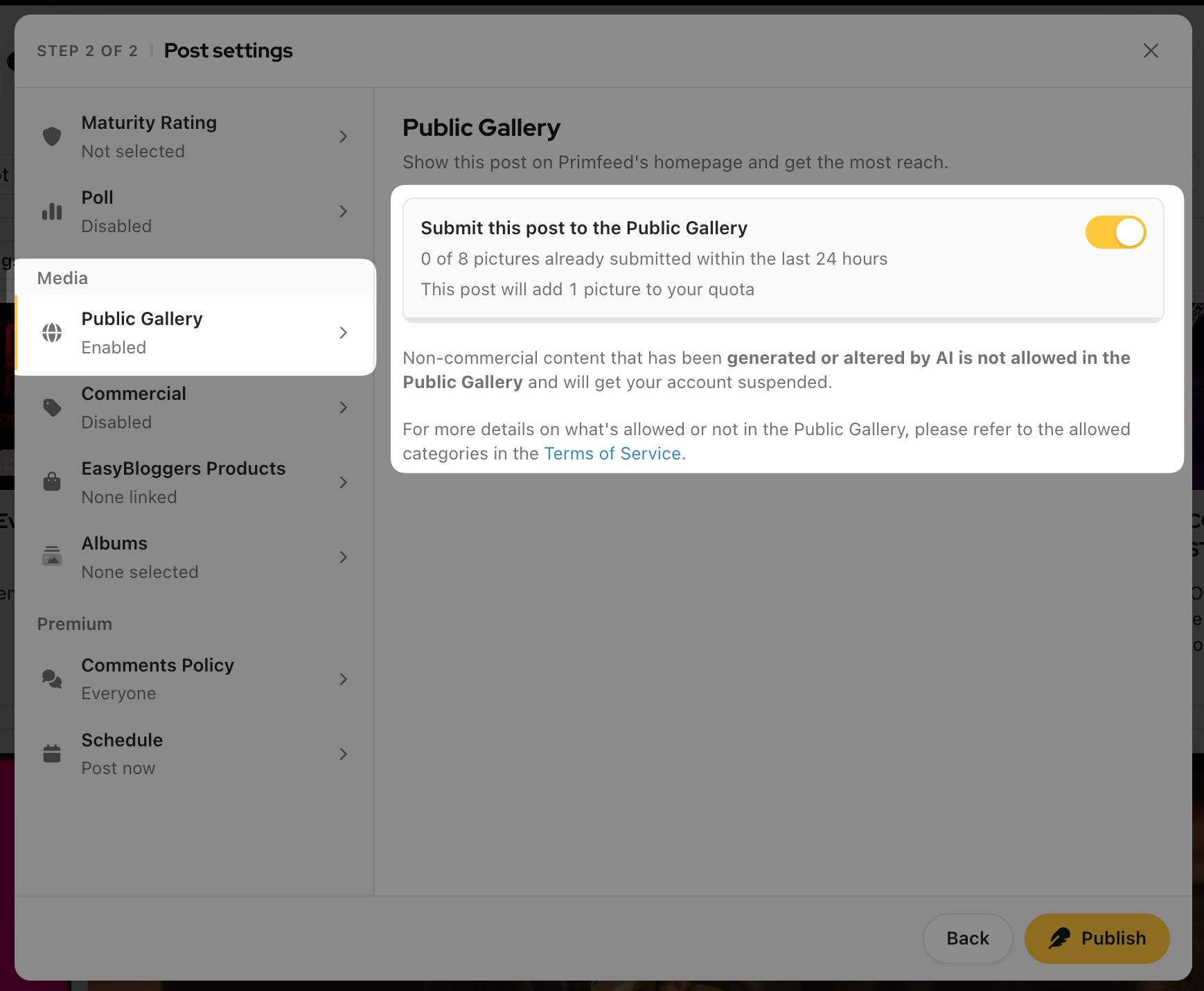
The Public Gallery is Primfeed's homepage feed, and you add a post to it by flipping the "Submit this post to the Public Gallery" switch in the post settings before you publish. Submitting gives your post the most reach on Primfeed, but each picture you submit counts against a rolling 24-hour quota, so the gallery stays fair for everyone.
Written By Luke Rowley
Last updated 20 days ago
A few things to know up front: only posts that have at least one image or video can go to the gallery, and the quota counts pictures, not posts. A post with three pictures uses three of your slots.
Submit a post to the Public Gallery
Start a new post and add at least one picture or video (the gallery options stay locked until you do).
Click Next to move to "Post settings" (Step 2 of 2).
In the left-hand list of sections, open Public Gallery (under the Media group).
Turn on the "Submit this post to the Public Gallery" switch.
Click Publish (or Schedule, if you set a scheduled time).
That's it. Your post will appears on Primfeed's homepage gallery.
Tip: The Public Gallery options are greyed out until your post has at least one image or video attached. If you can't find the toggle, go back to Step 1 and add your media first.
How the 24-hour submission quota works
The Public Gallery panel shows a live line like "2 of 4 pictures already submitted within the last 24 hours", plus a progress bar. Here's what's behind it:
The quota is counted per picture, not per post. If a post has more than one image, each image uses one slot. When you add media to a post you're about to submit, the panel tells you exactly how many it will use, e.g. "This post will add 2 pictures to your quota."
It's a rolling 24-hour window. Your slots aren't reset at midnight: each picture you submit "ages out" of the count 24 hours after it went in.
If you have no free slots left, Primfeed blocks the submission until a slot opens up.
Free vs Pro limits
Primeasy is an all-in-one product designed for creators, event owners and more. It contains EasyBloggers, EasySubscribers, EasySupport and EasyVendors, and with an active subscription, you unlock Primfeed Pro perks for your page on Primfeed.
See more at What is Primeasy?.
The "Next slot" timer
When you've used up your slots, the panel shows a countdown like "Next slot: in 3 hours 20 minutes". This is the moment your oldest submission ages out of the 24-hour window and frees up a slot, so the timer counts down to when your earliest picture is exactly 24 hours old. The timer only appears when you currently have pictures in the window; if you have free slots, there's nothing to count down to.
A rule worth remembering
Non-commercial content that has been generated or altered by AI is not allowed in the Public Gallery, and posting it there can get your account suspended.