Buy cosmetics: online or in-world
Cosmetics are avatar decorations, a border drawn around your profile and feed picture, and you can buy them two ways: online with a card (handled by Stripe) or in-world with Linden dollars (L$) using your Primfeed HUD.
Written By Luke Rowley
Last updated 2 months ago
Both methods drop the cosmetic into your inventory, where you choose which one to wear. Cosmetics apply to your personal account only, not to a store or business page.
Tip: Prices shown on each cosmetic depend on your currency, which Primfeed detects automatically. When you shop from inside Second Life, prices are shown in L$.
Buy online with a card (Stripe)
Open the Shop page (heading: "Shop").
Find the cosmetic you want and click "Buy for [price]" on its card. (If you already own it, the button reads "Already in inventory" instead.)
You're taken to Stripe Checkout to pay. This is a one-time payment, not a subscription.
After payment, Stripe sends you back to Primfeed and the cosmetic is added to your inventory.
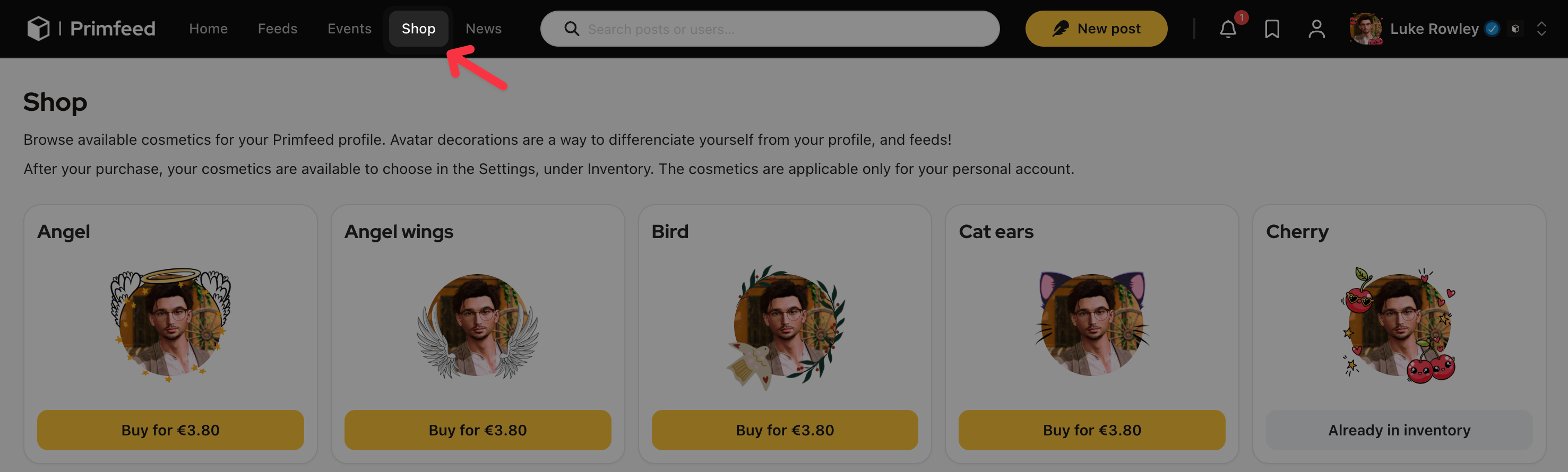
Tip: If you already own a cosmetic, checkout is blocked. The card shows "Already in inventory" rather than a buy button, so you can't pay for the same border twice.
Buy in-world with Linden dollars (L$)
Buying in-world uses your Primfeed HUD inside Second Life, so the payment comes straight from your avatar's L$ balance.
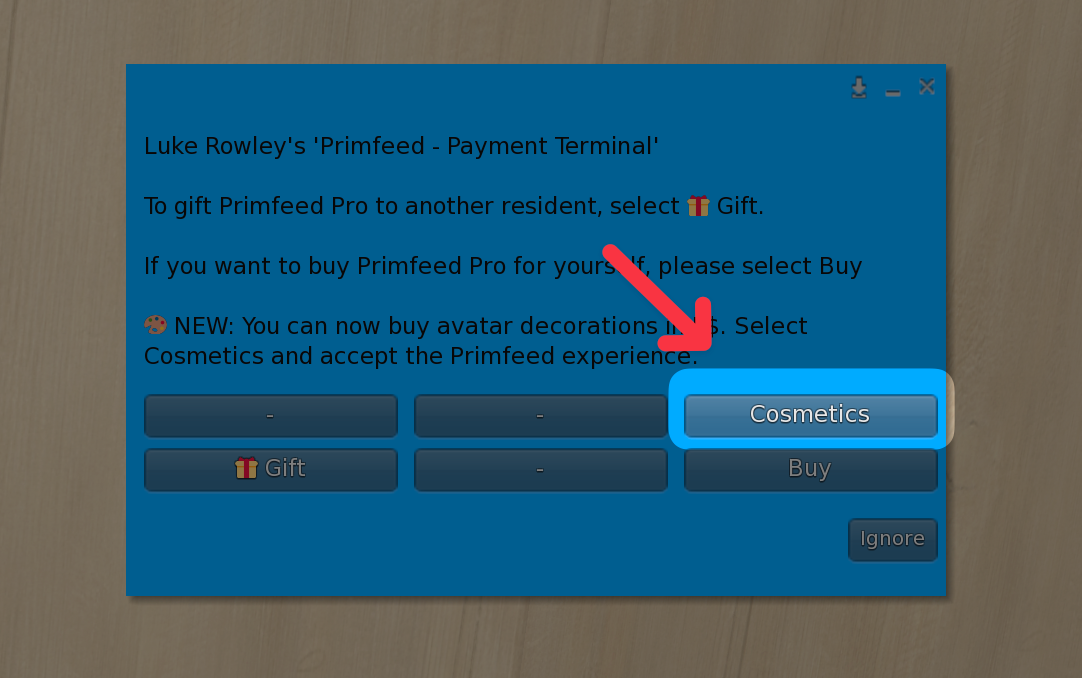
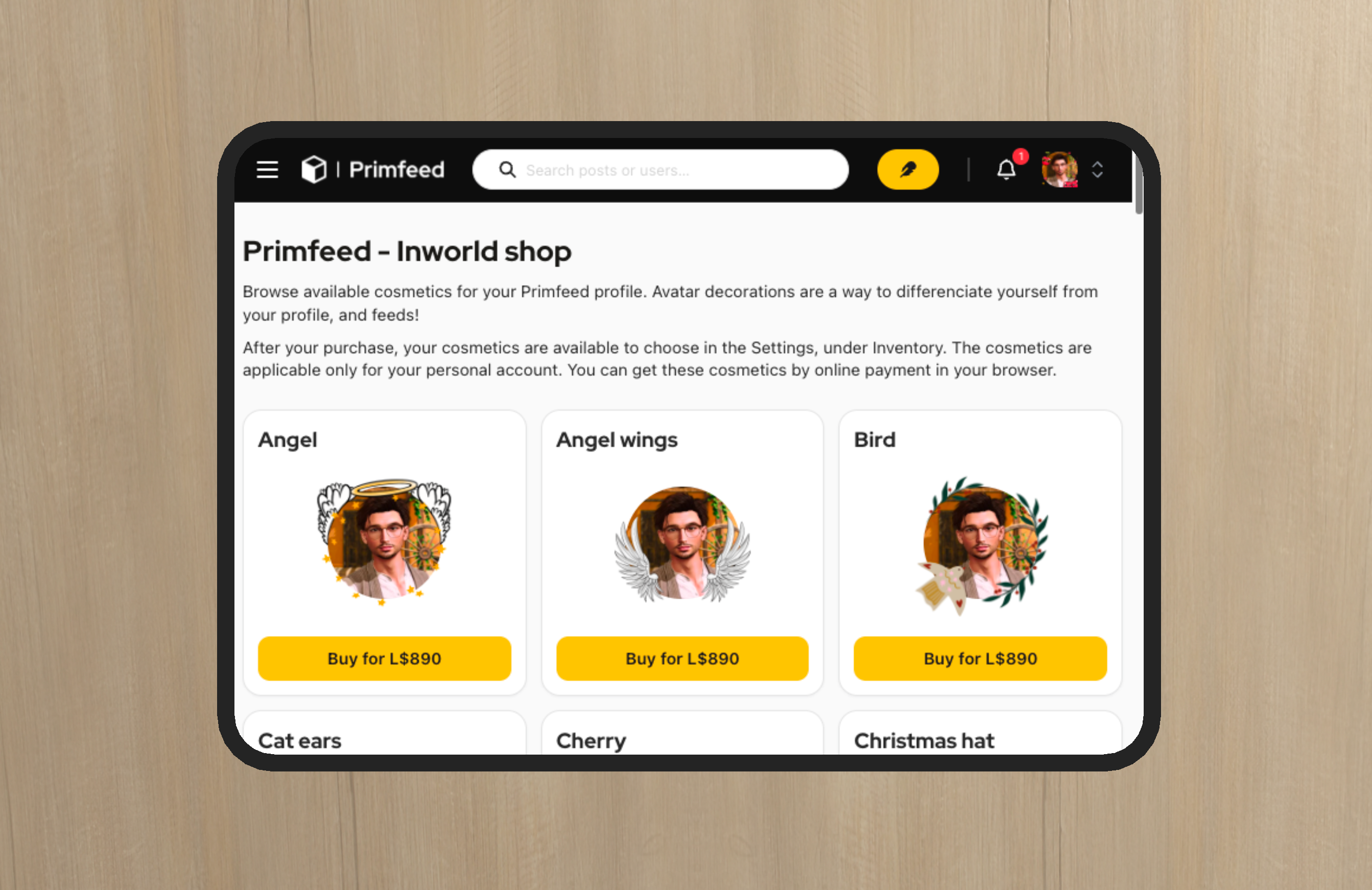
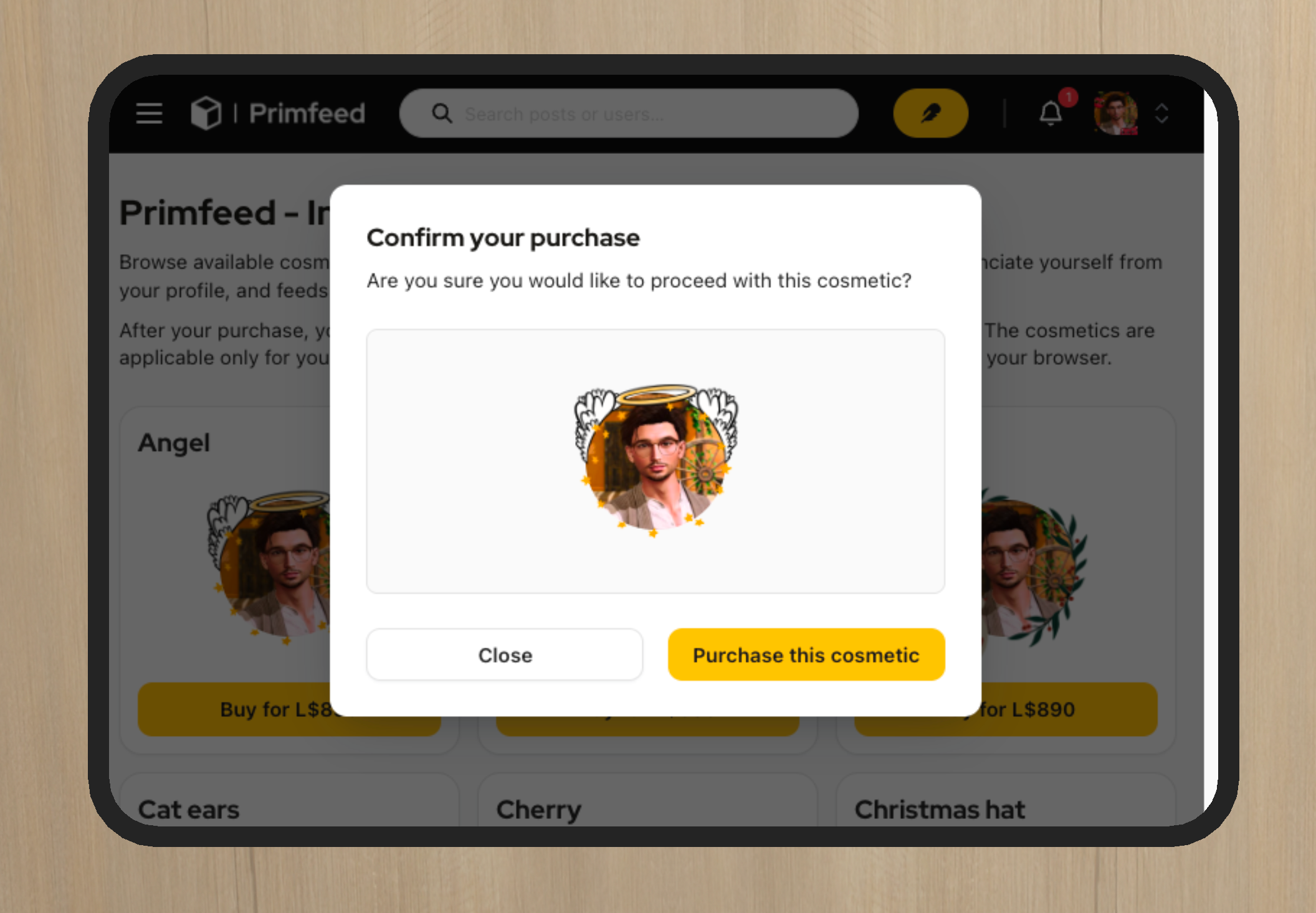
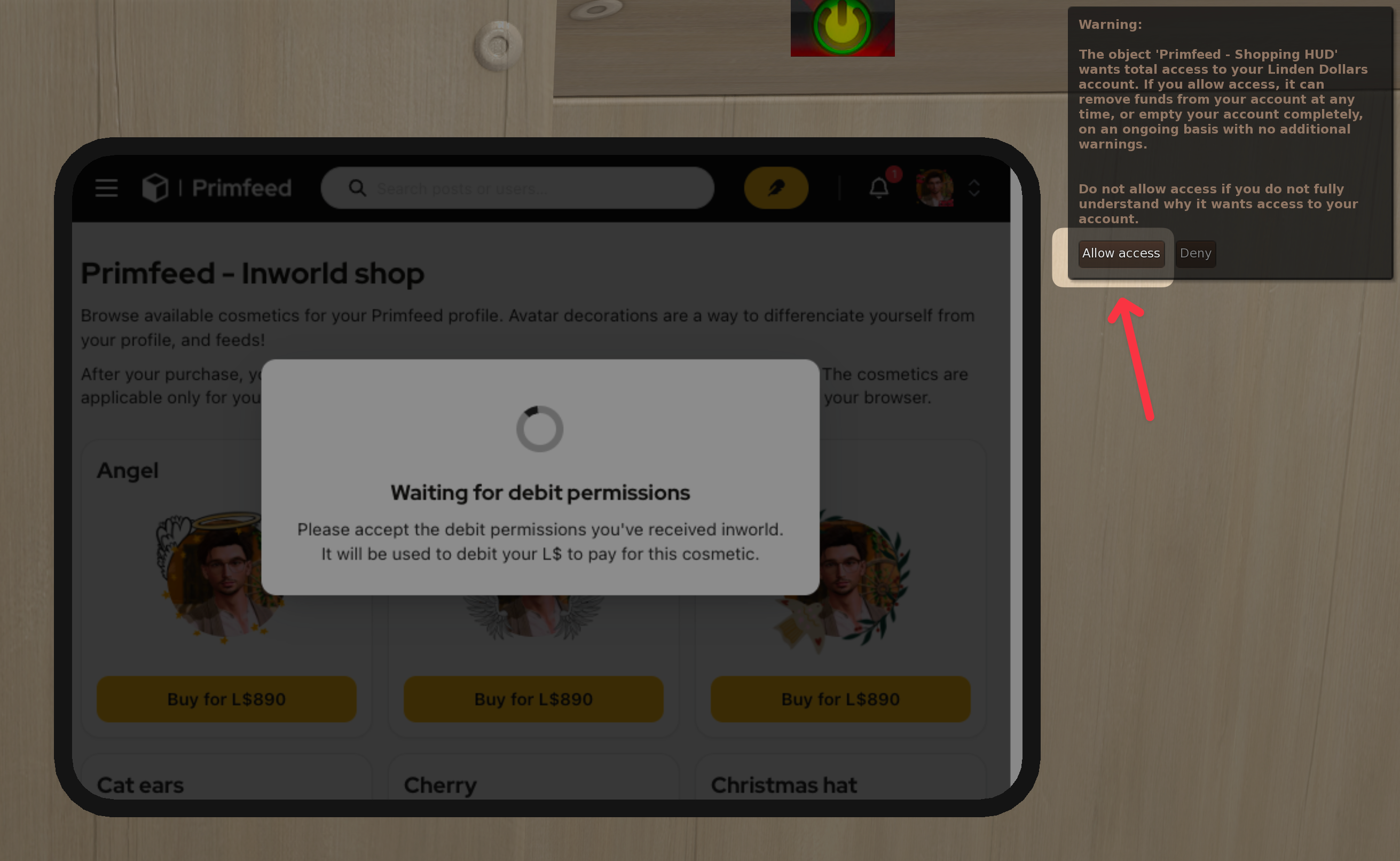
Accept the debit permissions you receive in-world. Once you accept, the payment completes and the cosmetic is added to your inventory.
Wearing what you bought
Only one cosmetic can be worn at a time.
Open Settings → Inventory.
Click "Select" on the cosmetic you want to wear.
To take it off, open the active cosmetic and click "Remove". This only un-equips it, so you still own it and can wear it again later.
See Activate cosmetics from your Inventory for the full inventory walkthrough.
Was this helpful?
Still need help? Share an idea