Choose light or dark theme and your post layout
Primfeed's appearance settings let you pick a light, dark, or system-matched theme and decide whether each post shows its text or its picture first. Both options live in the Personalization tab of your settings, and every change saves the moment you pick it; there's no Save button to press.
Written By Luke Rowley
Last updated About 2 months ago
These are personal preferences for your own account. They change how Primfeed looks to you; they don't affect how your posts appear to other residents.
Pick a light or dark theme
Open the account menu (your avatar, top-right) → Settings.
In the left sidebar, click Personalization.
Scroll to the Layout section and find Theme.
Choose one of the three options:
Sync with OS: matches whatever your device (computer or phone) is set to. This is the default.
Dark: always dark, no matter your device setting.
Light: always light, no matter your device setting.
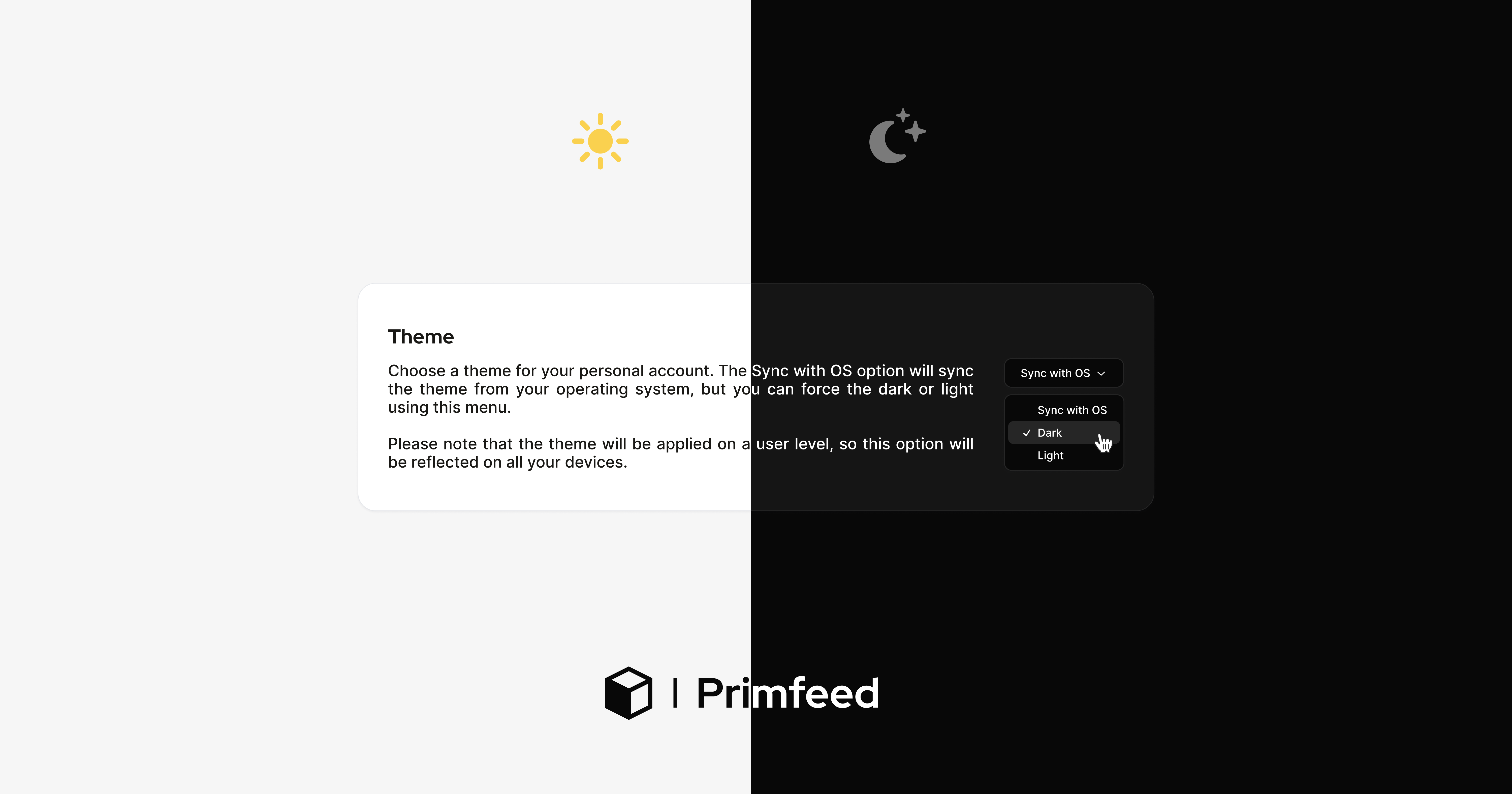
Tip: Your theme is saved to your account, not to one device, so if you set Primfeed to Dark on your computer, it'll be Dark when you log in from your phone too. Sync with OS is handy if you already let your device switch between light and dark on a schedule.
Choose how posts are laid out
The Layout post setting controls the order you see things inside a post: the caption first, or the picture/video first.
Open the account menu (your avatar, top-right) → Settings.
Click Personalization in the left sidebar.
In the Layout section, find Layout post.
Choose one:
Text, then media: the post's text appears above its image or video. This is the default.
Media, then text: the image or video appears first, with the text below it.
Was this helpful?
Still need help? Share an idea