Tag Second Life products in a post
Tagging products lets you link the items from an Primeasy store to a post, so the things you're showing off are spelled out for your followers right on the post. You add these product links in the post composer, on the second step, under the EasyBloggers Products section.
Written By Luke Rowley
Last updated 2 months ago
A few things worth knowing before you start: product tags pull from Primeasy store products, and you can only tag products from stores you own, manage, or blog for, and the section only becomes available once your post has at least one picture or video attached.
Before you start
To link products you need to be associated with an EasyBloggers store: as the owner, a manager, or a blogger. If you aren't tied to any store, the EasyBloggers Products option stays greyed out.
You also need at least one image or video on the post. The product option sits under the Media group of settings, which only unlocks once you've added media.
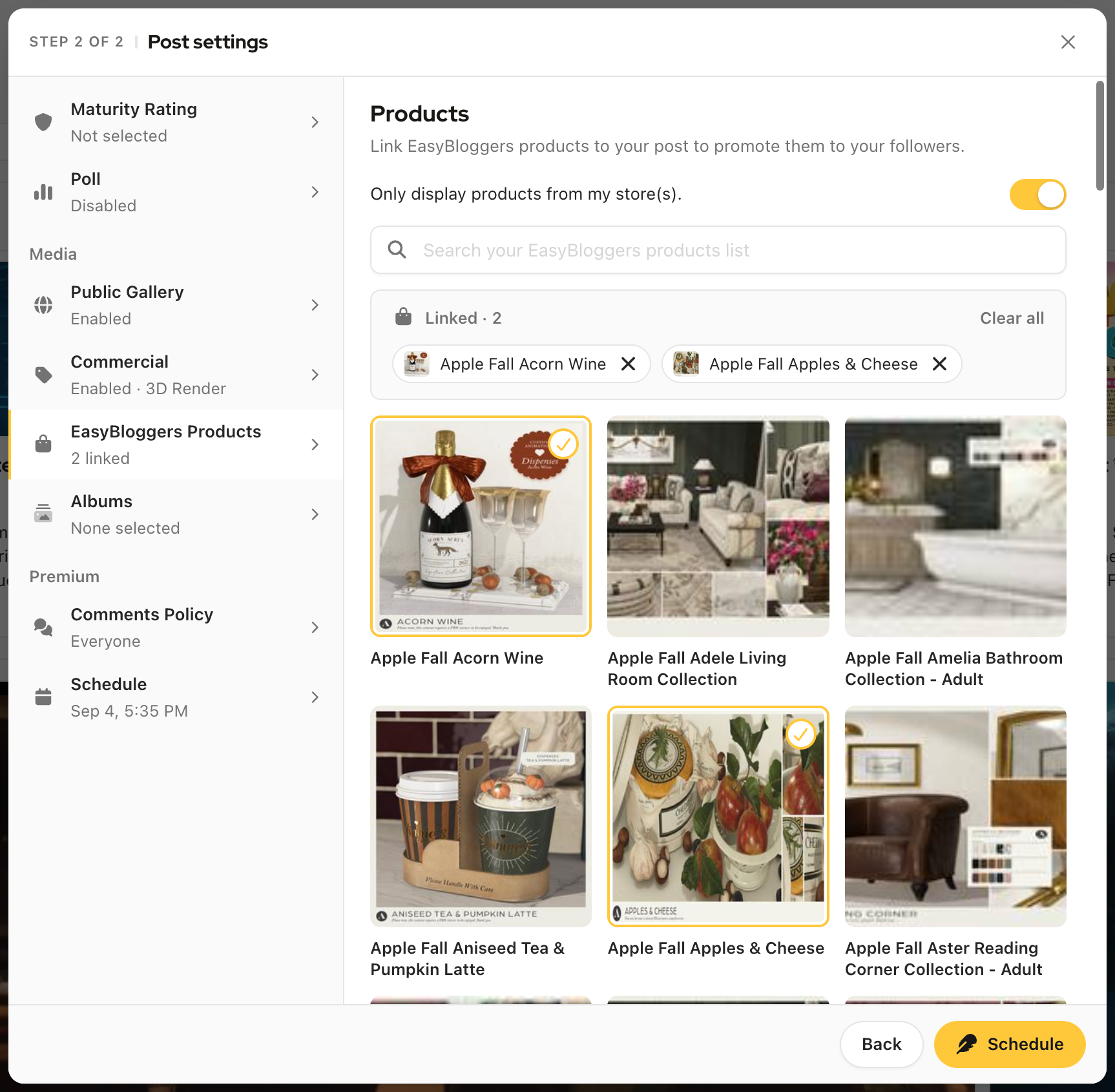
Tag products in a post
Start a new post (or edit an existing one) to open the composer.
On Step 1 of 2, write your caption and add at least one picture or video.
Click Next to move to Step 2 of 2 (Post settings).
In the left-hand list of sections, open EasyBloggers Products (under the Media group).
In the Products panel, use the search box ("Search your EasyBloggers products list") to find an item.
Click a product card to link it, a checkmark appears on the cards you've selected. Click again to unlink.
Your linked products show in a Linked · N summary above the catalog; remove one with its ×, or use Clear all to start over.
Finish your post with Publish (or Schedule / Save changes when editing).
Tip: If you own one or more stores, you'll see a "Only display products from my store(s)." toggle. Turn it on to hide products from stores you only manage or blog for, so you only see your own catalog.
Was this helpful?
Still need help? Share an idea