Set up your profile: display name, bio, picture and banner
Your Primfeed profile is where other residents get to know you, and you set it all up in one place: the Edit my profile dialog on your own profile page. From there you can change your display name, write a short bio, and swap your profile picture and banner.
Written By Luke Rowley
Last updated 15 days ago
Everything below is part of the free experience, so you don't need Primfeed Pro to set up your profile.
Open the Edit my profile dialog
Go to your own profile page (click the user icon at the top right, next to your name).
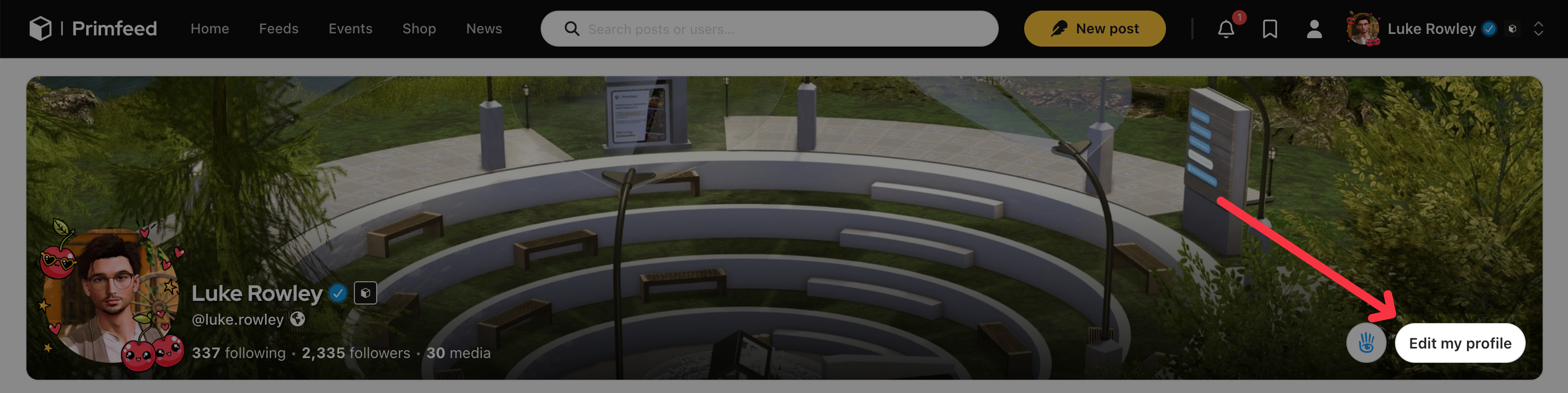
Near the top of your profile, next to your name and banner, click Edit my profile.
The Edit my profile dialog opens with your picture, banner and details ready to change.
The Edit my profile button only appears when you're viewing your own profile. If you don't see it, make sure you're not viewing someone else's page, and that you've selected your personal account (not a store) in the account switcher.
Change your display name and bio
Inside the Edit my profile dialog:
In the Display name field, type the name you want shown on your profile. If you leave it blank, your Second Life account name is used instead.
In the About box, write your bio. This is a rich-text editor, you can mention other residents with
@. Note that some of the formatting is reserved for Primfeed Pro members.Click Save my profile to apply your changes.
Your Display name is just the friendly name shown on your profile. Your handle (the @you part and your profile link) comes from your Second Life name, not from this field. See Refresh your legacy Second Life username.
Update your profile picture
In the Edit my profile dialog, click your profile picture (the round avatar).
Pick an image from your device.
Crop it in the pop-up, then confirm to upload.
Your new picture saves on its own as soon as the upload finishes, you'll see a "Profile picture updated" confirmation. You don't need to click Save my profile for the picture to stick.
Update your banner
In the Edit my profile dialog, click the banner area at the top (look for the camera icon).
Pick an image from your device.
The crop tool uses a wide 5:1 shape (five times as wide as it is tall), position your image inside that frame, then confirm to upload.
Like the picture, your banner saves on its own once the upload finishes, with a "Banner picture updated" confirmation.
Just as your pictures in posts, free users have their banner image limited to 1500px maximum. If you would like to have a higher resolution banner, consider upgrading to Primfeed Pro.
Add your social and website links
The same Edit my profile dialog has fields for your other links, including Flickr, Facebook, Instagram, Twitter/X, your personal website, Deviant Art, BlueSky, Marketplace, Youtube, Discord and Mastodon. Paste a full URL into any field you want to show, then click Save my profile. Filled-in links appear as icons on your profile.
Show your in-world IM status and favorite destinations
These two aren't in the Edit my profile dialog. On your profile, click Edit details to open the Profile tab of your settings, where you can say whether you welcome IMs in Second Life and add up to three favorite destinations. See Add your in-world IM status and favorite destinations.
Make your profile public or private
Whether logged-out visitors can see your profile is a separate setting. In the Edit my profile dialog, click Change the visibility of my profile to jump to your Personalization settings, where you can switch your profile between Private and Public.
Note that your A and A+ posts are only visible to logged-in users.
Was this helpful?
Still need help? Share an idea