Create and manage Albums
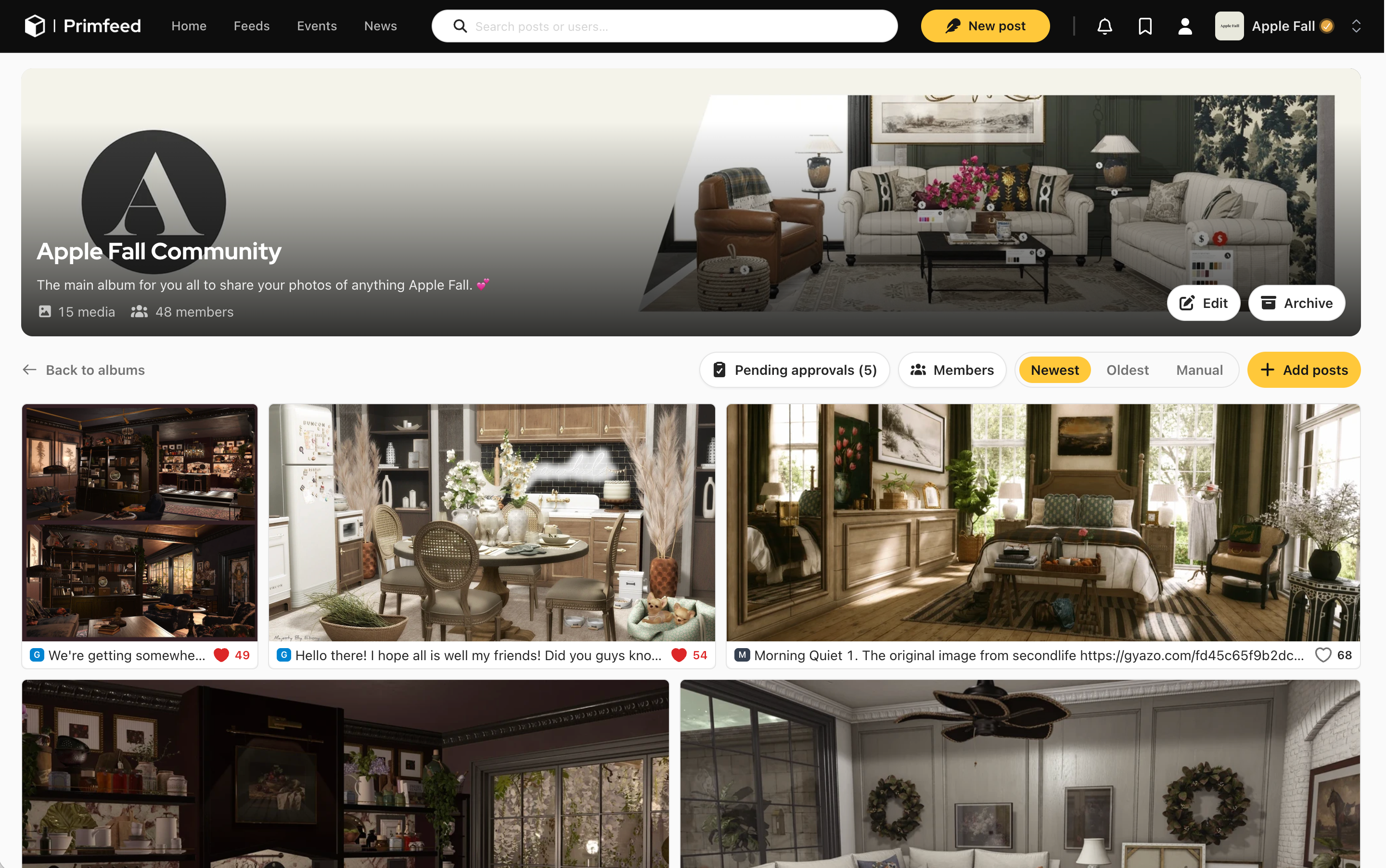
An Album is a named collection of Primfeed posts, a way to gather pictures and videos into themed sets like a photo shoot, a build series, or an event recap. Albums live on the Albums tab of your profile, each gets its own shareable link, and you can feature your favorites at the top of your profile. You can also make an album shared, so other people contribute their own posts to it while you stay its owner.
Written By Luke Rowley
Last updated About 1 month ago
Your posts are never duplicated or moved into an album. An album just points at posts you already have, so adding or removing them never touches the original posts.
An album normally holds only your own posts. You can also turn one into a shared album and let other people contribute theirs, which is covered further down.
Create an album
Go to your profile and open the Albums tab.
Click Create album (top-right). The first time, the empty state shows a Create your first album button instead.
In the Create album dialog, fill in:
Cover (optional): see setting a cover below.
Name (required, up to 60 characters): As you type, a live preview shows the album's link:
primfeed.com/{your-handle}/albums/{name}.Description (optional, up to 280 characters): a short note on what the album is about.
Favorite album toggle: see featuring albums below.
Click Create album.
Your album's link is built from its name. If you rename an album later, the link changes and any old bookmarked links to it will stop working. The editor warns you about this when you rename.
Add posts to an album
There are two ways to put posts in an album, and both only work on your own posts:
From the album page: open the album and click Add posts. In the Add posts to album dialog you can search within your posts, filter by maturity rating (General / Moderate / Adult / Adult+) and date range, then confirm. You can add up to 100 posts at a time.
While posting: in the post composer's second step, open the Albums panel ("Add this post to one or more of your albums") and pick the albums it should go into. You can also create a new album right there.
Posts with no media (text-only posts) are skipped, and a post can live in several albums at once. When a post belongs to one or more albums, it shows an In N albums label you can click to see which ones.
Set or change the cover
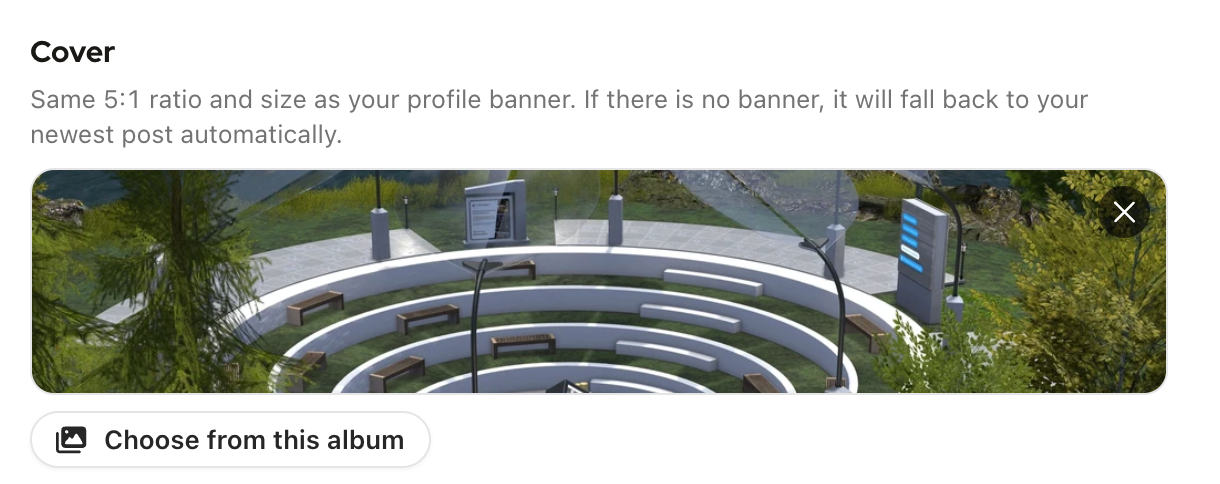
In the album editor, the Cover area lets you upload an image. Covers use the same 5:1 ratio and size as your profile banner, so a wide banner-style image looks best.
If you don't upload a cover, Primfeed fills it in automatically: it falls back to the first media of your album's newest published post. If the album is empty, it simply shows no cover. You can change or replace the cover any time by editing the album.
Feature albums on your profile
Featuring (also called marking an album as a favorite) pins it to the top of your Albums tab and surfaces it in a Featured albums widget on your profile, with a See all → link to your full albums list.
Open the album editor (when creating, or via Edit on an existing album).
Turn on the Favorite album toggle.
Save.
How many you can feature depends on your plan:
Free: up to 3 favorite albums.
Pro: up to 6 favorite albums.
If you have more than one favorite, you can drag them to reorder how they appear in the widget.
Shared albums
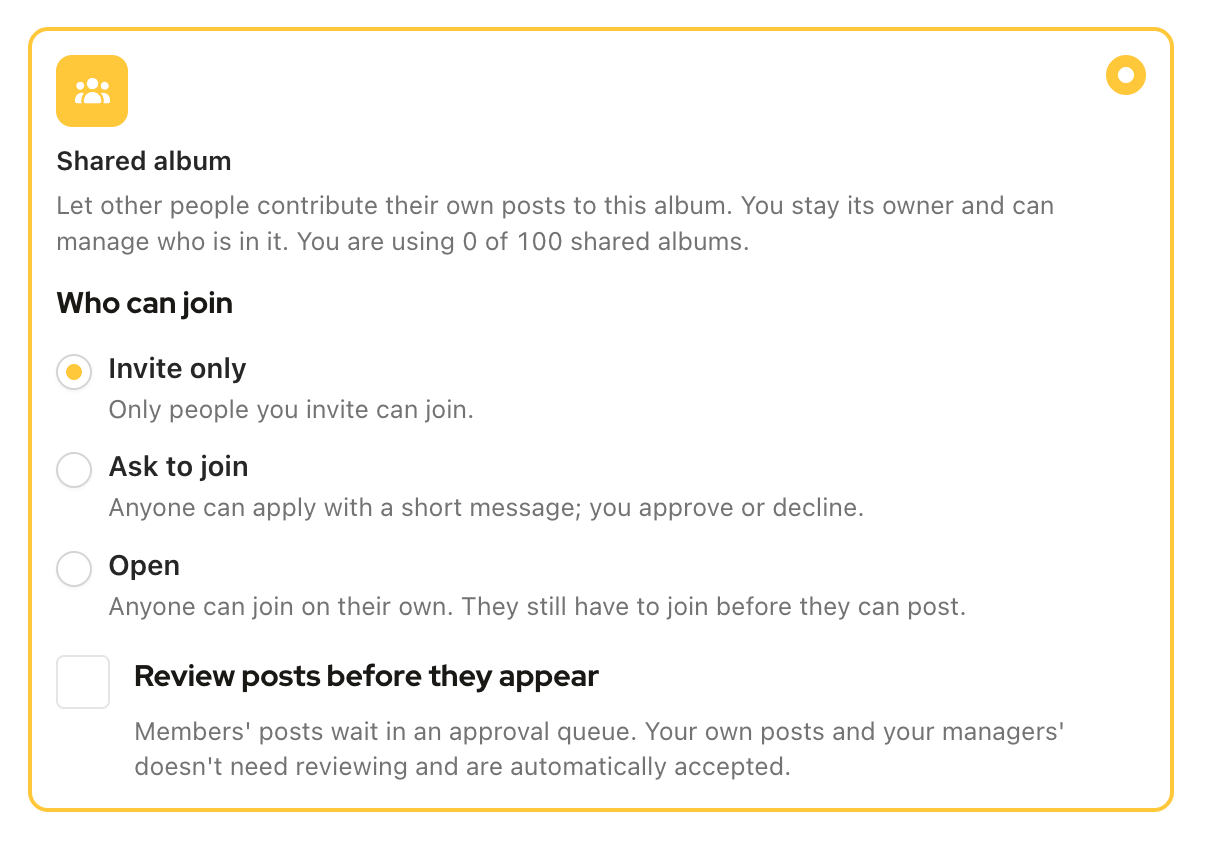
By default an album holds only your own posts. Turn on Shared album and other people can contribute their own posts to it. You stay its owner and decide who gets in.
Open the album editor, either while creating an album or through Edit on one you already have.
Turn on Shared album.
Choose Who can join:
Invite only: only people you invite can join. This is the default.
Ask to join: anyone can apply with a short message, and you approve or decline.
Open: anyone can join on their own. They still have to join before they can post.
Optionally tick Review posts before they appear. Members' posts then wait in an approval queue, while your own posts and your managers' are accepted automatically.
Save.
Once people have joined the album or added their posts to it, sharing can no longer be turned off. Archive the album instead if you want to retire it.
Shared albums have their own cap on top of your normal album limit. The editor shows how many you are using, and the numbers are in Album limits by plan below.
Manage members and posts in a shared album
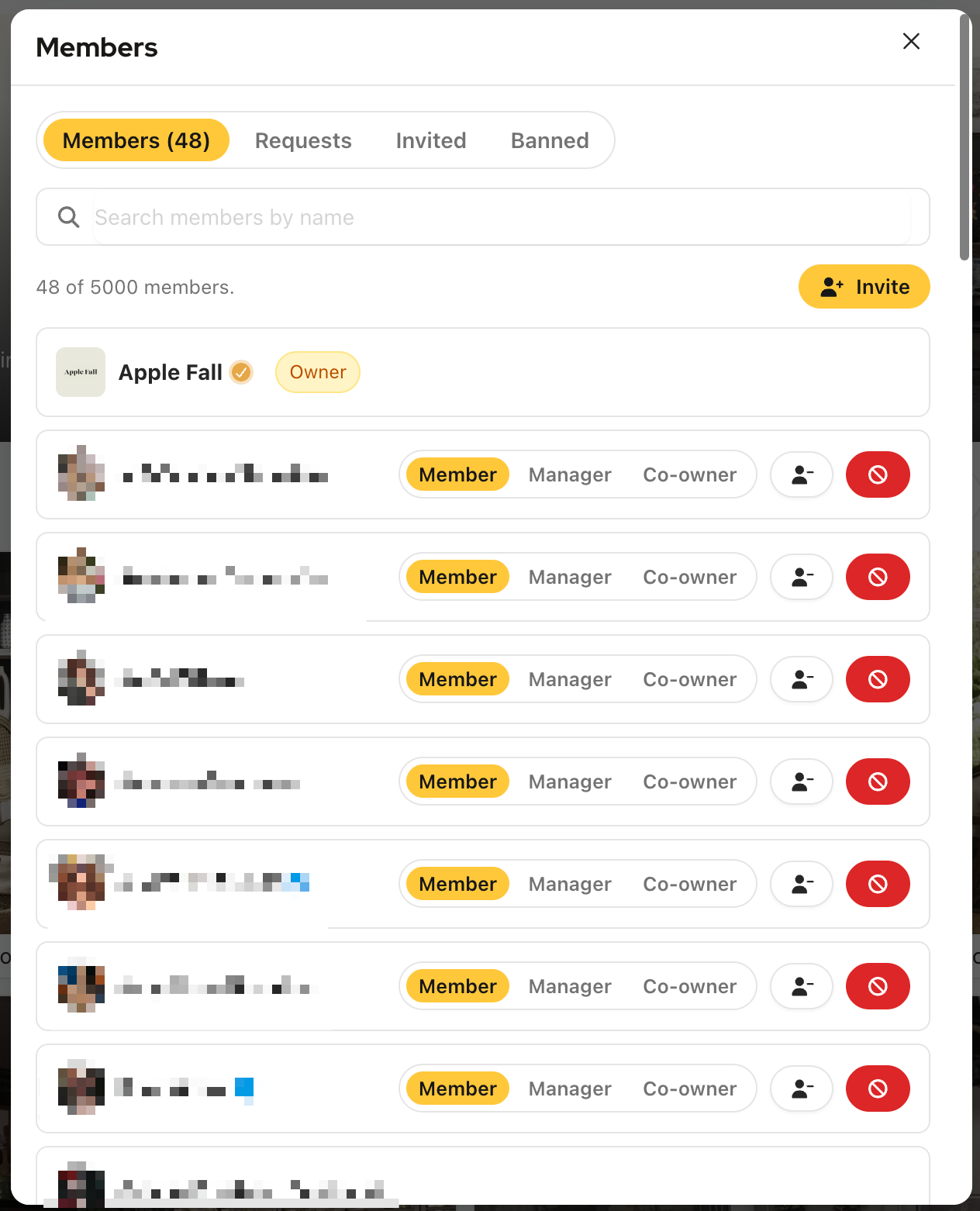
Open the album's members dialog to see everyone involved, grouped into Members, Requests and Invited, plus anyone you have banned. You can search the list by name.
There are three roles:
Co-owner: full control of the album, including its members and its posts.
Manager: can invite and manage members, moderate posts and reorder the album. Their own posts skip the approval queue.
Member: can add their own posts to the album.
From that dialog you can invite someone, approve or decline a request to join, cancel an invitation, change a member's role, remove a member, or ban them from the album. A ban can be lifted again later.
If you turned on Review posts before they appear, contributions collect in Post moderation, where you approve or decline each one. Primfeed notifies the people involved as things happen: invitations and join requests, members joining or being removed, and contributions being approved or rejected.
Join, contribute to, or leave a shared album
How you get into someone else's shared album depends on how its owner set it up. You may be invited, you may have to ask to join with a short message, or you may be able to join on your own if the album is open. Either way, you have to join before you can post.
Once you are a member, add posts the way you always do: in the post composer's second step, open the Albums panel and pick the album under Shared albums. If the owner reviews contributions, the panel tells you that posts there wait for a manager's approval before they appear.
To step away, leave the album from its page. You can tick Also remove my posts from this album on your way out. Either way only your membership ends, and your posts stay on your profile.
Archive, unarchive, or delete an album
Each album card has a ⋯ (more) menu. Open it on your own albums to manage them. The same actions appear on the album's detail page.
Edit: reopen the editor to change the name, description, cover, or favorite status.
Archive: hides the album from your public profile and automatically removes it from your favorites. Archiving frees up a slot, so it doesn't count toward your active-album limit. You can find archived albums via the Archived (N) toggle and switch back with Active albums.
Unarchive: brings an archived album back. If you're already at your active-album limit, you'll need to archive or delete another album first.
Delete: removes the album for good. A Delete album confirmation appears and reminds you that your posts will not be deleted, only the album itself goes away.
Album limits by plan
The cap counts your active (non-archived) albums; archived albums don't count against it.
When you reach a Free limit, Primfeed shows an upgrade link. To see everything Pro includes, see Primfeed Pro.
Was this helpful?
Still need help? Share an idea