Label commercial, AI and 3D-render posts
Primfeed labels let you disclose when a post is a commercial content and whether the product you're showing was altered by AI or rendered outside Second Life, so other residents (and the Public Gallery) see your content honestly tagged.
Written By Luke Rowley
Last updated 2 months ago
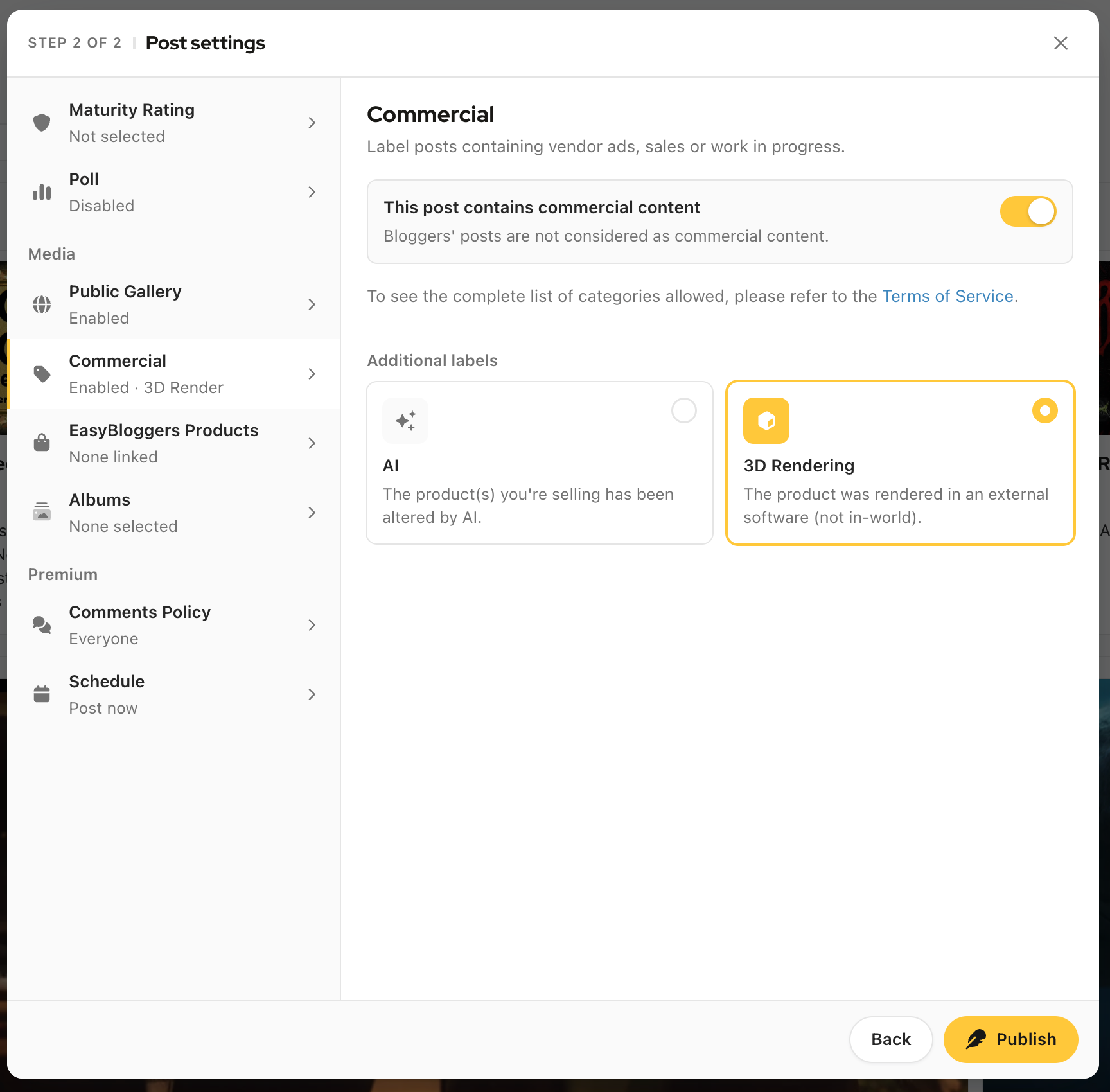
There are three labels: Commercial, AI, and 3D Rendering, and the AI and 3D Rendering labels are turned on as add-ons to the Commercial label.
These labels live in the second step of the post editor, under the Commercial section. They aren't a Pro feature, every account can (and when it applies, must) use them.
What each label means
Commercial: switched on with "This post contains commercial content." Use it for posts that contain vendor ads, sales or work in progress on a product you're selling. (Note: a blogger's post about someone else's product is not considered commercial content)
AI: described as "The product(s) you're selling has been altered by AI." Turn this on when the product in a commercial post has been altered using AI.
3D Rendering: described as "The product was rendered in an external software (not in-world)." Turn this on when the image was rendered in external software rather than captured in-world.
Important: The AI and 3D Rendering labels only appear once Commercial is switched on, they're shown under an "Additional labels" heading. They are not independent toggles. If you switch Commercial back off, both the AI and 3D Rendering labels are cleared automatically.
When you must use them
Turn on Commercial whenever your post is a vendor ad, a sale announcement, or work in progress for a product you sell.
If that commercial post's product was altered by AI, also turn on AI.
If that commercial post's image was rendered in external software (not captured in-world), also turn on 3D Rendering.
There's an important rule about AI content that isn't commercial: AI-generated or AI-altered content that is not commercial is not allowed in the Public Gallery. The AI and 3D Rendering labels exist specifically for commercial posts; for non-commercial posts, the system removes these tags rather than letting you apply them. If you're submitting to the Public Gallery, see Submit a post to the Public Gallery (and how the 24-hour quota works) for the full content rules.
Mislabelling can also be reported and moderated.
How to apply the labels
Start a new post (or edit one) to open the post editor, and add at least one image or video. The label options live under the Media category and stay disabled until your post has media attached.
On step 1, finish your caption and click Next to reach "Post settings" (Step 2 of 2).
In the left-hand list, open the Commercial section.
Turn on "This post contains commercial content."
If they apply, turn on the AI card and/or the 3D Rendering card that appear under "Additional labels."
Click Publish (or Schedule / Save changes if you're scheduling or editing).
Tip: Not sure which categories count as commercial? Refer to the Terms of Service.
Was this helpful?
Still need help? Share an idea