Set the maturity rating on your post
A maturity rating tells everyone how mature your post's content is, using one of four levels: General, Moderate, Adult, or Adult+. Primfeed asks you to set it on every post before you publish. Choosing the right rating keeps your content in front of the residents who want to see it and keeps your account in good standing. Rating your post isn't optional.
Written By Luke Rowley
Last updated 2 months ago
Set the rating when you create or edit a post
The maturity rating lives in the second step of the post composer, alongside your other post settings.
Start a new post (or edit an existing one) to open the composer.
Add your picture or video and write your caption, then click Next to move to Post settings (Step 2 of 2).
In the left-hand list, open Maturity Rating (it shows your current choice, or "Not selected" if you haven't picked one yet).
Click the card for the rating that fits your content: General, Moderate, Adult, or Adult+.
Finish with Publish (or Save changes when editing).
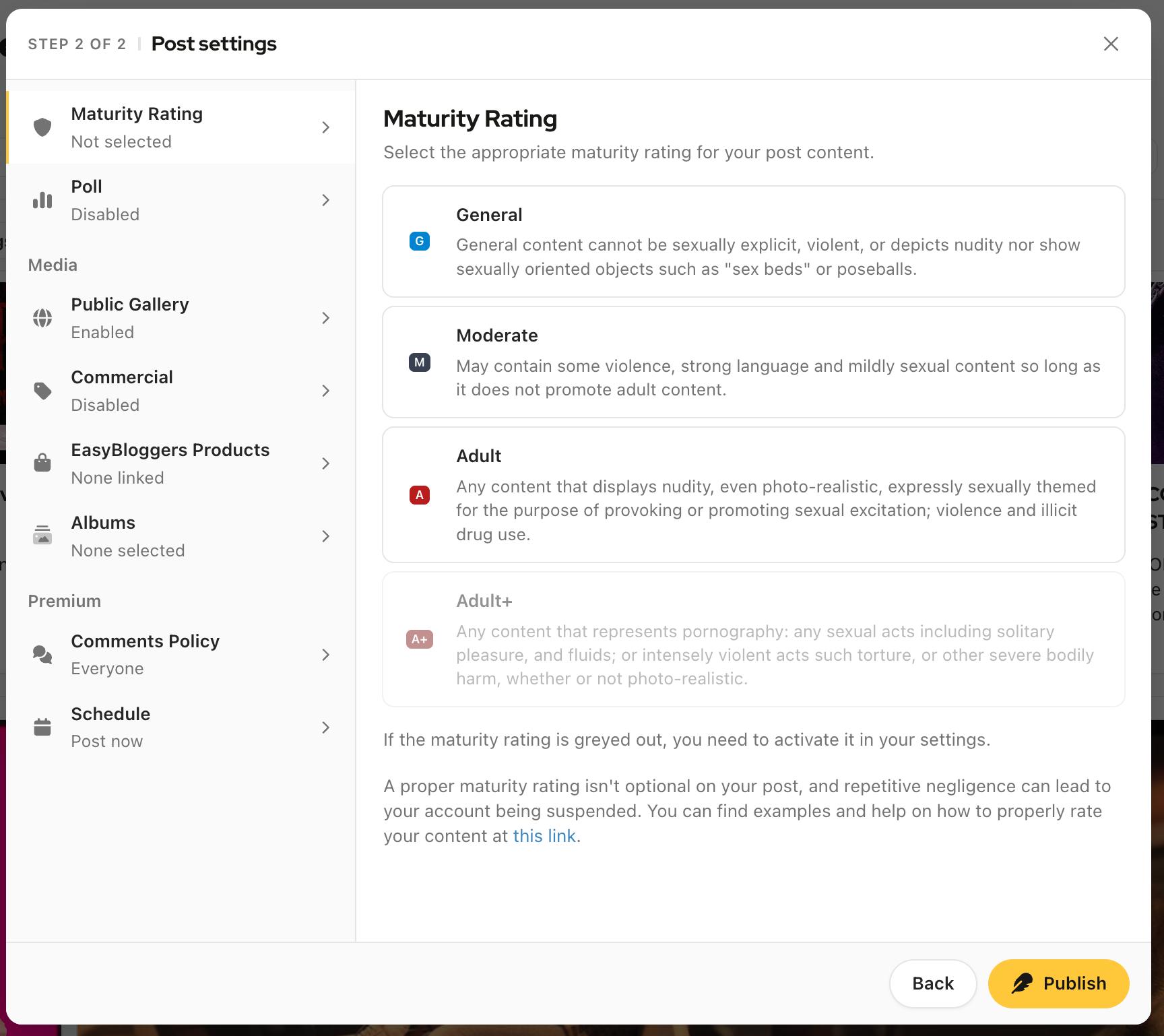
What each rating means
Primfeed uses these definitions inside the composer. Pick the one that matches the most mature element in your post.
General: Cannot be sexually explicit, violent, or depict nudity, and cannot show sexually oriented objects such as "sex beds" or poseballs.
Moderate: May contain some violence, strong language, and mildly sexual content, so long as it does not promote adult content.
Adult: Any content that displays nudity (even photo-realistic), is expressly sexually themed to provoke or promote sexual excitation, or shows violence and illicit drug use.
Adult+: Any content that represents pornography: sexual acts including solitary pleasure and fluids, or intensely violent acts such as torture or other severe bodily harm, whether or not photo-realistic.
Tip: A proper rating is mandatory. Repeatedly mislabelling your posts can lead to your account being suspended. When in doubt, we suggest you to use a higher rate. Primfeed keeps a fuller guide with examples at Maturity Rating .
If a rating is greyed out
You can only apply ratings that you've enabled for your own account. If Adult or Adult+ (or any other level) appears greyed out and won't let you select it, you need to switch it on in your settings first.
Open Settings → the Content tab.
Under Filters, find Maturity rating.
Choose a combination that includes the rating you want to use (for example, one that includes Adult+).
This single setting does two jobs: it controls which ratings you can apply to your own posts, and it controls which posts you see across your feeds. Note that posts outside your selected range won't appear for you at all, even your own, so keep that in mind when narrowing it down.
If you would like to see posts outside of your selected maturity ratings, you can enable the setting below Content → Feeds → Show hidden posts
Was this helpful?
Still need help? Share an idea