Like, comment, repost, quote and share posts
Every post on Primfeed has a row of buttons that let you react to it: you can like it, comment on it, repost or quote it to your own followers, and copy a link to share it anywhere. These are the everyday ways you show appreciation and pass good content along to the residents who follow you.
Written By Luke Rowley
Last updated 2 months ago
You need to be logged in to interact with a post. If you're browsing while signed out, you'll see public posts but not the buttons to react to them.
Like a post
Find the heart button below the post.
Click it to like the post. Click it again to remove your like.
The number next to the heart shows how many residents have liked the post.
Tip: If you own the post, clicking on the like button will show the list of the users liking this post.
Comment on a post
Click the comment button (the speech-bubble icon, next to the comment count) to open the post.
Type your comment in the box, which shows "Comment as {your name}".
Press the send button (the paper-plane icon) to post your comment.
You can mention other residents with @ and add hashtags right inside a comment, just like in a post.
Tip: Whether you can comment at all depends on the post owner's settings. Some posts allow comments from everyone, some only from people the owner follows, and some have comments turned off. See choosing who can comment on your post below to set this for your own posts.
Repost a post
A repost shares someone else's post to your followers exactly as it is, with no added text.
Click the repost button (the arrows icon) on the post.
Choose Repost from the menu.
The button turns green once you've reposted, and the repost appears in your followers' feeds. To undo it, click the repost button again and choose Cancel repost.
Tip: If your followers don't want reposts cluttering their feed, they can hide reposts in Settings → Content. See Content filters: maturity, AI and reposts.
Quote a post
A quote lets you share someone's post and add your own words above it, it’s perfect for adding a reaction or your take.
Click the repost button (the arrows icon) on the post.
Choose Quote post from the menu.
Write your caption, then publish it as you would any post.
Share a post with a link
To send a post to someone outside Primfeed, in a notecard, an IM, or anywhere else, copy its link.
Open the post's "⋯" menu (the ellipsis in the top-right corner of the post).
Click Copy link.
Primfeed generates a short link and copies it to your clipboard.
Choose who can comment on your own post
When you create or edit your own post, you can decide who is allowed to comment on it.
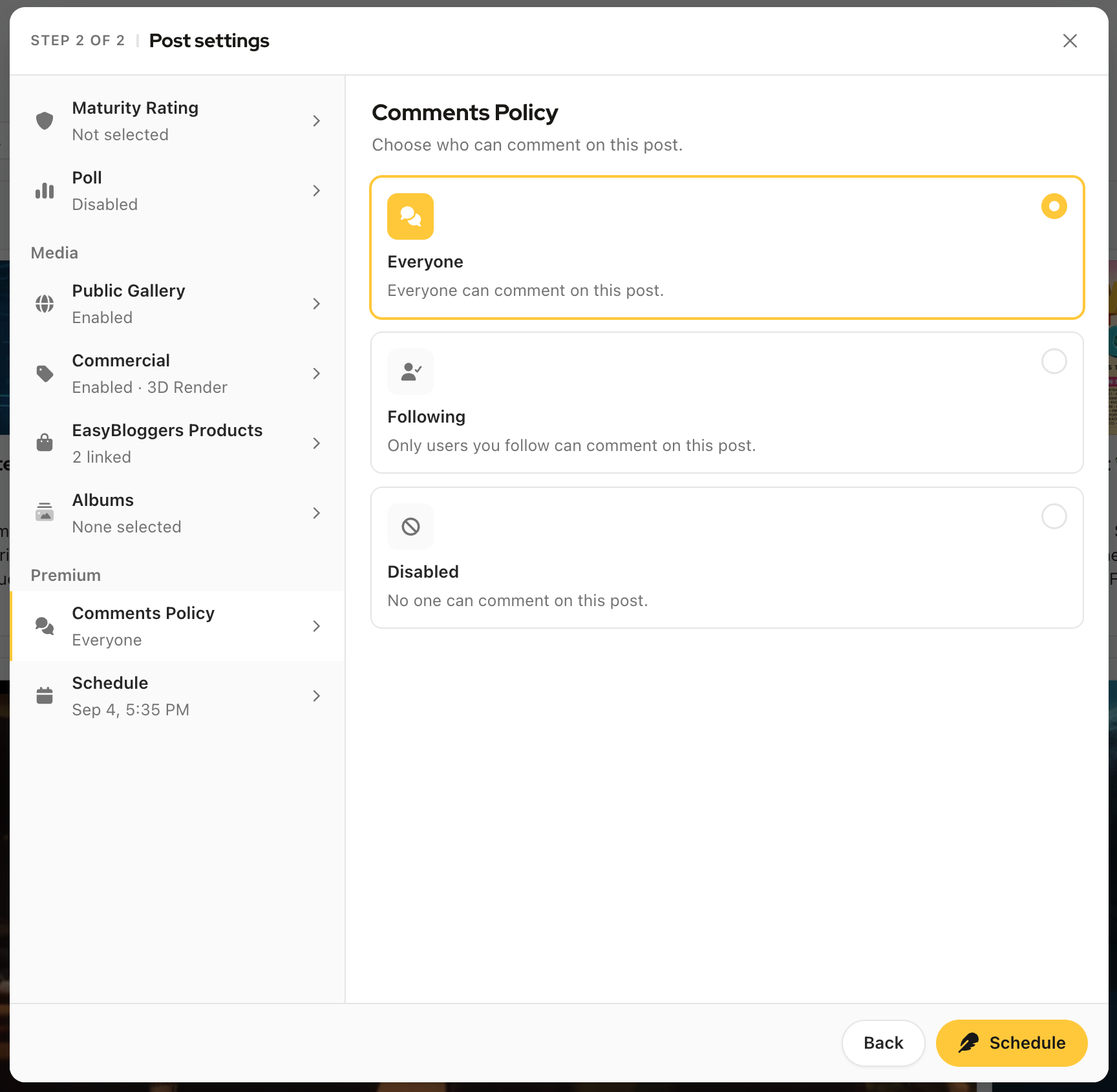
In the post composer, click Next to reach Post settings (Step 2 of 2).
In the left-hand list, open Comments Policy (under the Premium group).
Pick one of the three options:
Everyone: everyone can comment on this post.
Following: only residents you follow can comment.
Disabled: no one can comment.
Finish and publish (or save) your post.
By default, every post allows comments from Everyone.
Tip: Choosing who can comment is a Primfeed Pro feature. On a free account, posts always use the default Everyone setting.
Was this helpful?
Still need help? Share an idea