Connect your Second Life viewer so you can post in-world
Connecting your viewer links a Third-Party Viewer (TPV) like Firestorm to your Primfeed account, so you can create a Primfeed post with a picture straight from inside Second Life. You authorize the connection once, on a Primfeed consent page, and from then on your viewer can post on your behalf as you, or as one of your stores. It's a one-time link you can review or remove any time in your settings.
Written By Luke Rowley
Last updated About 1 month ago
How to authorize your viewer
The flow starts inside your viewer and finishes in your web browser.
Start the connection in your viewer. Use your viewer's Primfeed feature to begin linking. It opens a Primfeed authorization page in your default browser.
Log in to Primfeed if asked. If you're not already signed in, you'll be sent to the login page first and brought back automatically once you're in. (New to Primfeed? See Welcome to Primfeed: the social network for Second Life.)
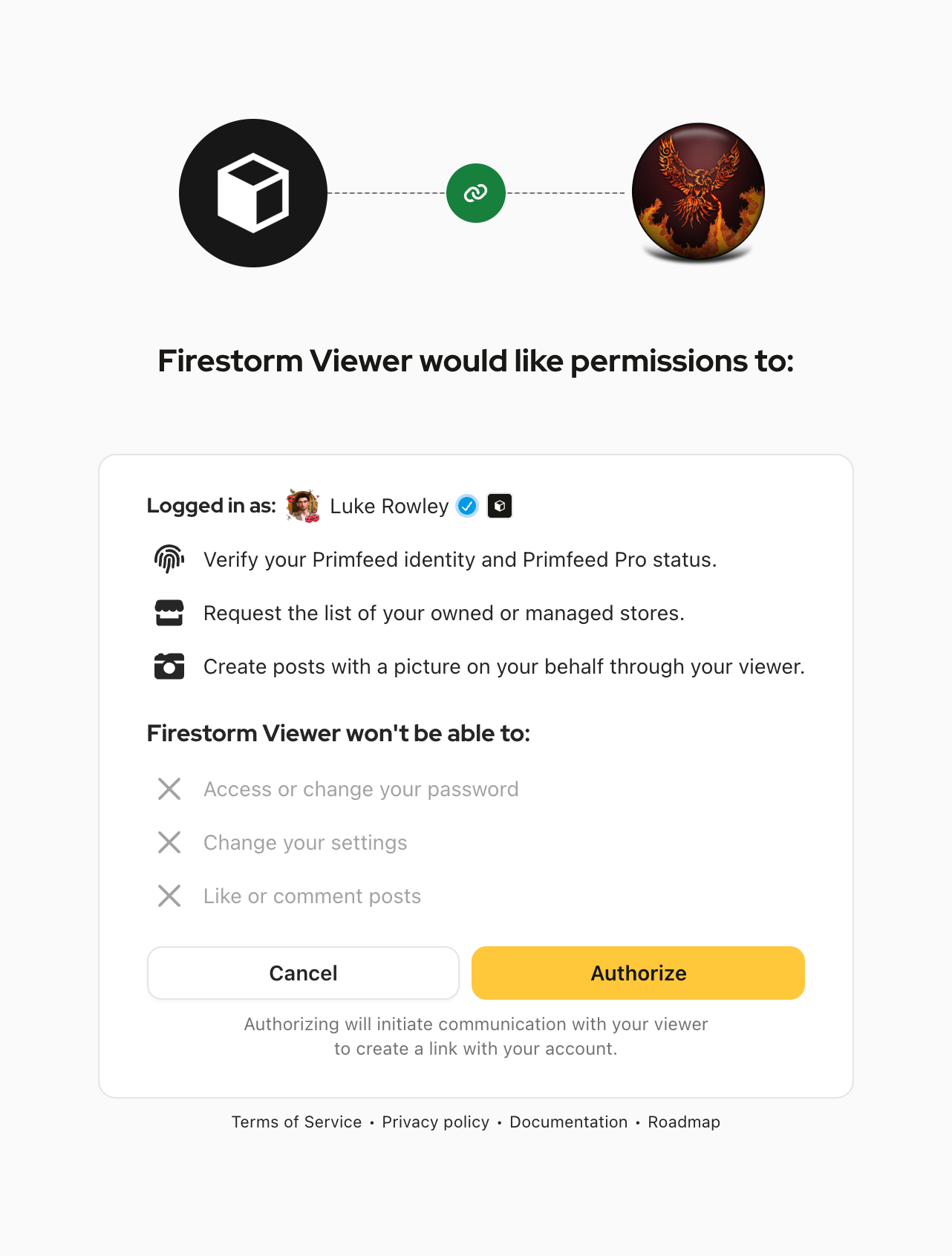
Check who you're linking. The consent page shows the viewer's name and logo, a "Logged in as:" line with your avatar, and the list of permissions above. Make sure the avatar shown is the right one. If you're signed in to Primfeed with a different account than the avatar in your viewer, you'll see an error instead, and you'll need to log in with the matching account.
Click "Authorize". Primfeed then starts communicating with your viewer for a handshake.
Let your viewer finish. When it's done, you'll see a "Success" screen: "Your viewer have been correctly linked with your Primfeed account. You can now post pictures from your viewer."
After your viewer is linked
Once the link succeeds, your viewer can create posts for you, as yourself or as a store you own or manage, and your Primfeed plan (Free or Pro) is recognized automatically. To learn what you can do once you're posting from in-world, see Create your first post.
Removing a viewer connection
You stay in control of every linked viewer. To review or remove one, open Settings → Security → TPV Tokens, where each linked viewer is listed with when it was last used. Click Delete next to a viewer to remove its access. See Account security: login, devices and tokens for the full walkthrough.
Was this helpful?
Still need help? Share an idea