Content filters: maturity, AI and reposts
Content filters are per-account settings that decide which posts you see across Primfeed: by maturity rating, by AI or 3D-render tags, and by whether reposts and quote posts appear in your feeds. They live in one place, the Content tab in Settings, and every change saves the moment you pick it (there's no separate save button).
Written By Luke Rowley
Last updated 2 months ago
One thing worth knowing up front: your maturity setting affects every post, including your own. Posts that don't match your preference simply won't appear.
Open your content filters
Click your profile picture (top-right in the navbar) to open the account menu.
Choose Settings (gear icon). This opens straight to the Content tab.
You can also reach it from the Settings sidebar under Account → Content. The tab has two groups: Filters (maturity, render, AI) and Feeds (hidden posts, reposts, quote posts).
Set your maximum maturity rating
Primfeed uses four maturity ratings: General, Moderate, Adult, and Adult+. The Maturity rating filter is a single dropdown where you pick the combination of ratings you want to see.
In the Filters group, find Maturity rating.
Open the dropdown and pick the combination you want. The presets are:
General
Moderate
Adult
Adult+
General + Moderate
General + Moderate + Adult
General + Moderate + Adult + Adult+
Moderate + Adult + Adult+
Adult + Adult+
Your choice saves immediately.
New accounts start at General + Moderate + Adult.
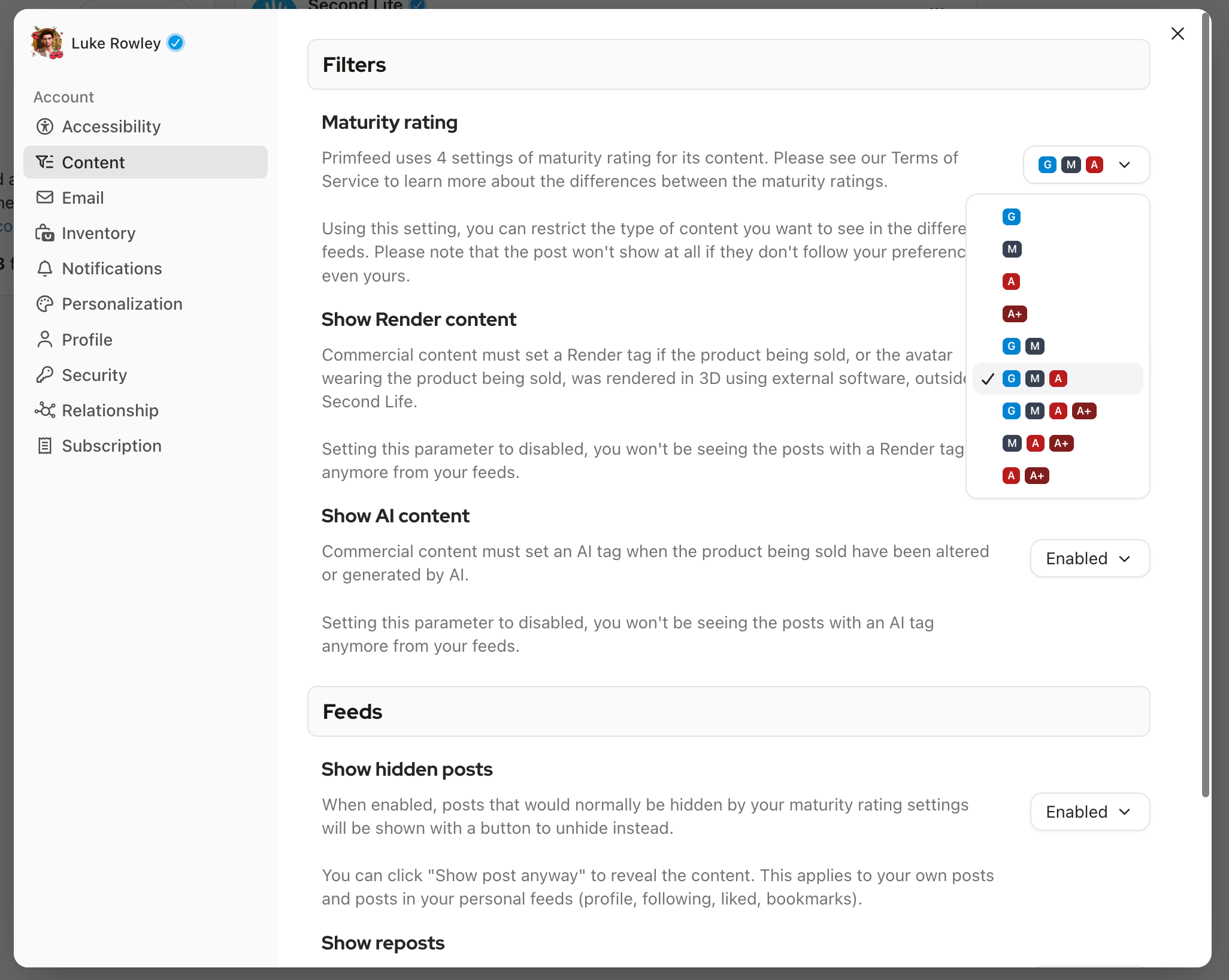
Tip: This setting is the same ceiling that controls which ratings you can apply when you post. If a maturity rating looks greyed out in the post composer, it's because it isn't enabled here, so widen this setting first.
Hide AI or 3D-rendered content
When a creator marks a commercial post, they can tag it as AI (the product was altered or generated by AI) or 3D Rendering (the product was rendered in external software, outside of Second Life). Two filters let you hide either kind from your feeds.
Show Render content: set to Disabled to stop seeing posts that carry a Render tag.
Show AI content: set to Disabled to stop seeing posts that carry an AI tag.
Both are Enabled by default. To change one, open its dropdown in the Filters group and switch it to Disabled; the change applies right away.
Tip: These tags only appear on commercial posts. Non-commercial content that's been generated or altered by AI isn't allowed in the Public Gallery at all, so these filters mostly affect what you see in commercial creator posts. See Submit a post to the Public Gallery (and how the 24-hour quota works).
Control reposts and quote posts in your feed
In the Feeds group you can trim two kinds of shared content:
Show reposts: set to Disabled to hide reposts from your Following feed and from profile views.
Show quote post: set to Disabled to hide quoted posts from your Following and Discovery feeds.
Both default to Enabled. We suggest that if someone only reposts or quotes, it may be cleaner to unfollow them, since these toggles remove that content entirely.
Tip: Quote posts often add real commentary, so we recommend re-enabling Show quote post now and then to check what you're missing.
Show hidden posts (instead of removing them)
There's a related toggle in the Feeds group: Show hidden posts. When Enabled (the default), posts that your maturity setting would normally hide instead appear with a Show post anyway button, so you can reveal them one at a time rather than having them vanish. This applies to your own posts and your personal feeds (profile, following, liked, bookmarks).
Related articles
Was this helpful?
Still need help? Share an idea