Activate cosmetics from your Inventory
Your Inventory is where every cosmetic you own lives, and "activating" one means choosing it as the decoration drawn around your profile picture. Cosmetics on Primfeed are avatar decorations (a border that frames your avatar), and you can keep as many as you like in your Inventory while showing only one at a time.
Written By Luke Rowley
Last updated 2 months ago
Cosmetics apply to your personal account only, not to a store or business page.
Find your cosmetics in your Inventory
Open the Primfeed account menu (your avatar in the topbar) → Settings.
In the settings dialog, look under the Account group in the left sidebar and click Inventory.
Your purchased cosmetics appear as cards, each showing the cosmetic's name and a preview of how it frames your avatar.
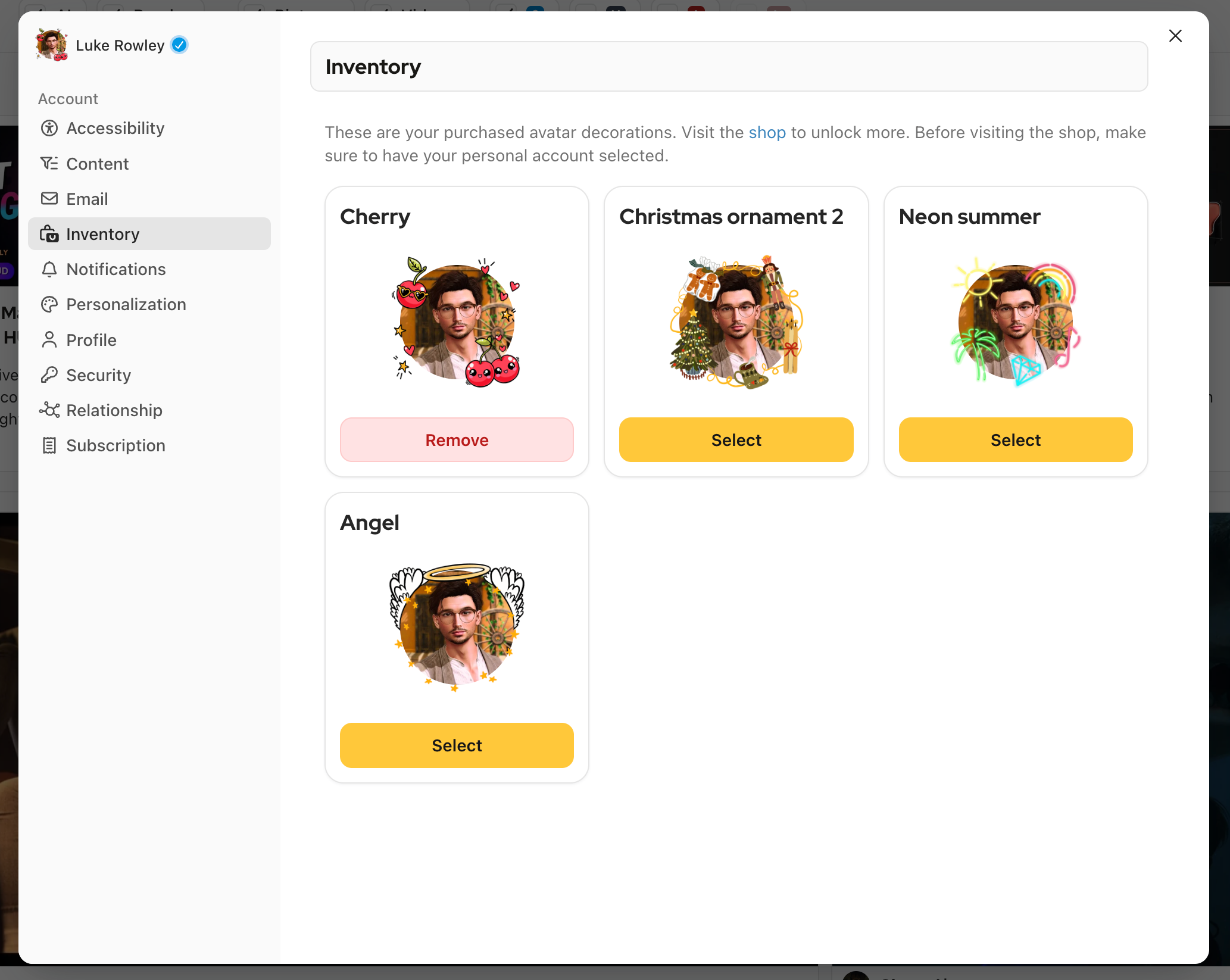
If you see "You don't own any cosmetics yet.", your Inventory is empty. The Inventory page links you to the shop so you can pick one up, see Buy cosmetics: online or in-world.
Activate (select) a cosmetic
On the cosmetic card you want to wear, click Select.
The decoration is applied to your profile picture right away.
Tip: Only one cosmetic can be active at a time. Selecting a different cosmetic simply switches your decoration over.
Remove the active cosmetic
If you'd rather show no decoration:
Find the active cosmetic (the card with the Remove button).
Click Remove.
This only un-equips the decoration. You still own the cosmetic, and it stays in your Inventory so you can select it again any time.
Tip: Removing a cosmetic never deletes it from your Inventory. There's no way to lose a cosmetic you've already bought, so feel free to switch back and forth.
Related articles
Was this helpful?
Still need help? Share an idea